TABLE OF CONTENTS
- Domain / Active Directory / Computer login
- Locked out of computer or laptop
- Office 365 / Sharepoint
- iRecruit
- Dashboards
- Netsuite
- Nurserycare / Coldharbour / Civica
Domain / Active Directory / Computer login
Open Active Directory either locally on your computer or log onto BBDC01 via Remote Desktop and then open AD.
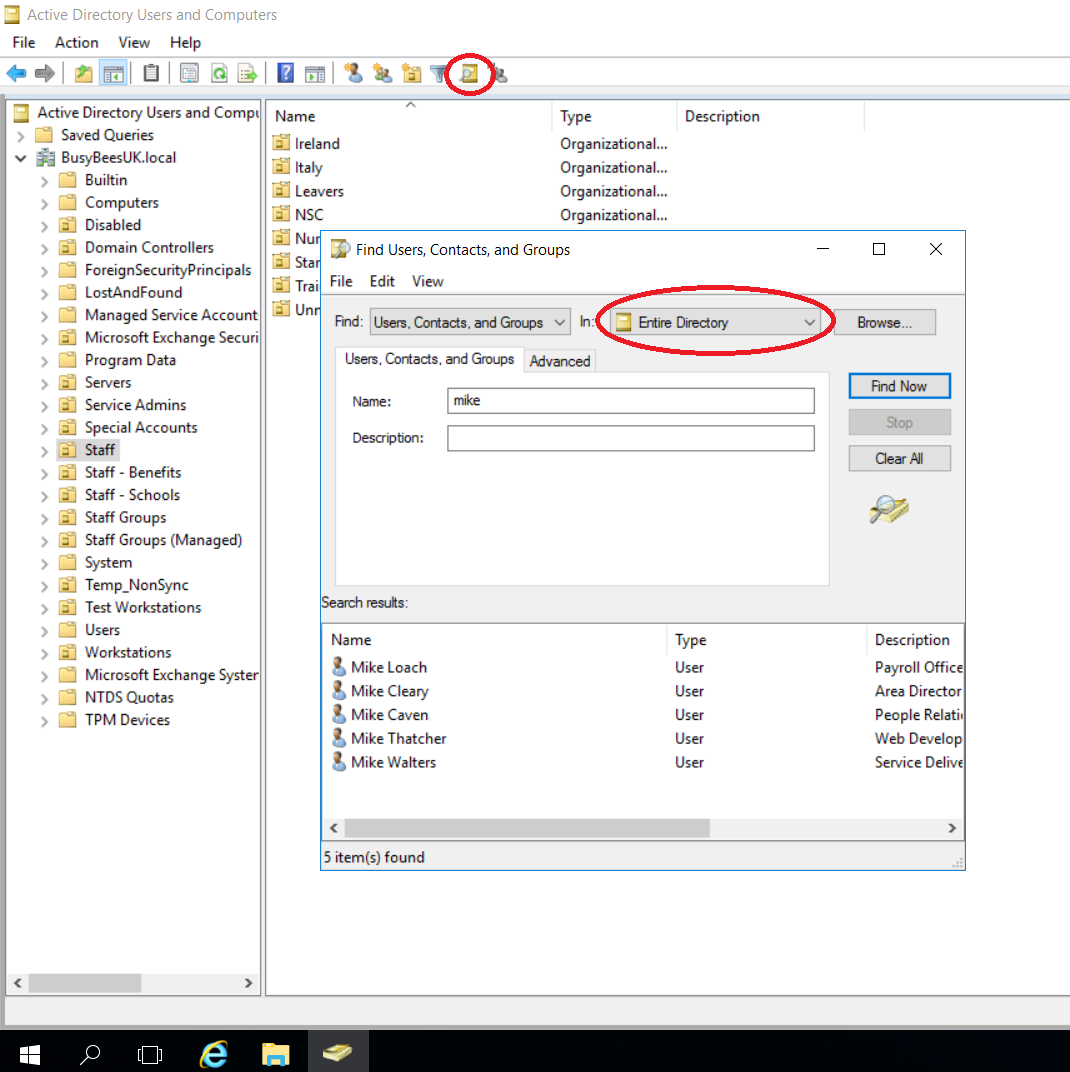
The easiest way to find the user account is by clicking the "Search/Find" button at the top.
Then select the drop down to "Entire Directory" and search for the users name in the box below.
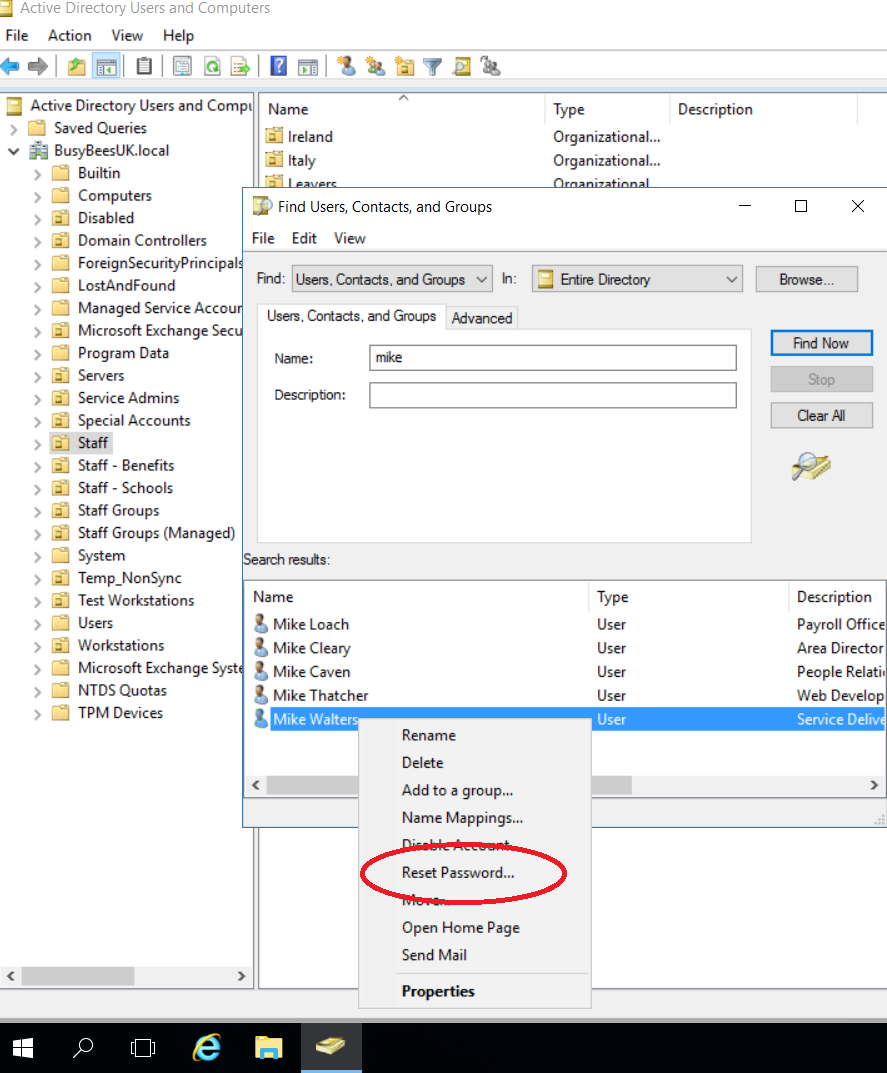
Right click the username and click "Reset password"
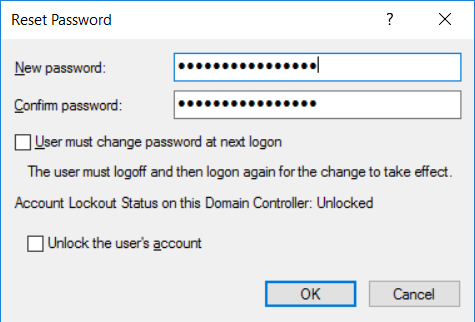
- Enter the password, this needs to be at least 8 character long, with at least one uppercase and two numbers.
- Ensure this isn't anything like BusyBees123 or Password123 or Burntwood123
- You can also tick the box "User must change password at next logon" if the user is logging onto a computer/laptop connected to the Busy Bees network. If the user is working from home, this will not work unless the user has the VPN connected.
The new password will then take up to 30 minutes to sync to 365 - after this point the mailbox/Sharepoint password will also update to the new password. You can manually set the password in 365 too.
Locked out of computer or laptop
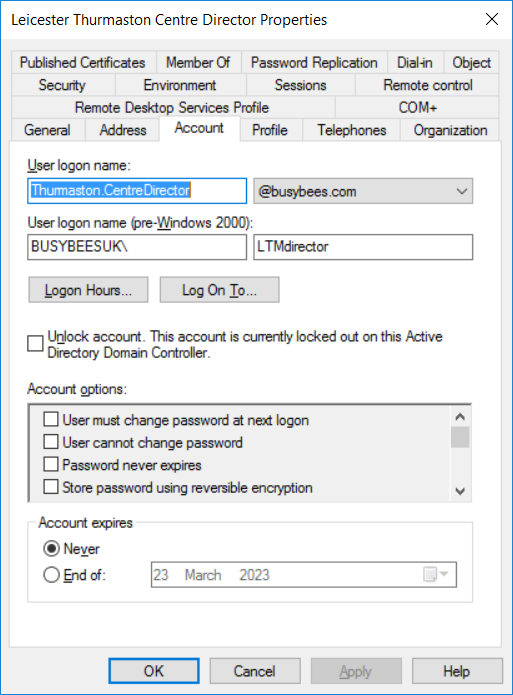
If an account is locked out, double click the name from the list, tick the box that says "Unlock account" in the middle of the window, click "Apply" and then "OK" at the bottom.
Office 365 / Sharepoint
Go to https://admin.microsoft.com/ and login with your Admin account. (You may want to open this link in Incognito mode to save you logging out of your main account)
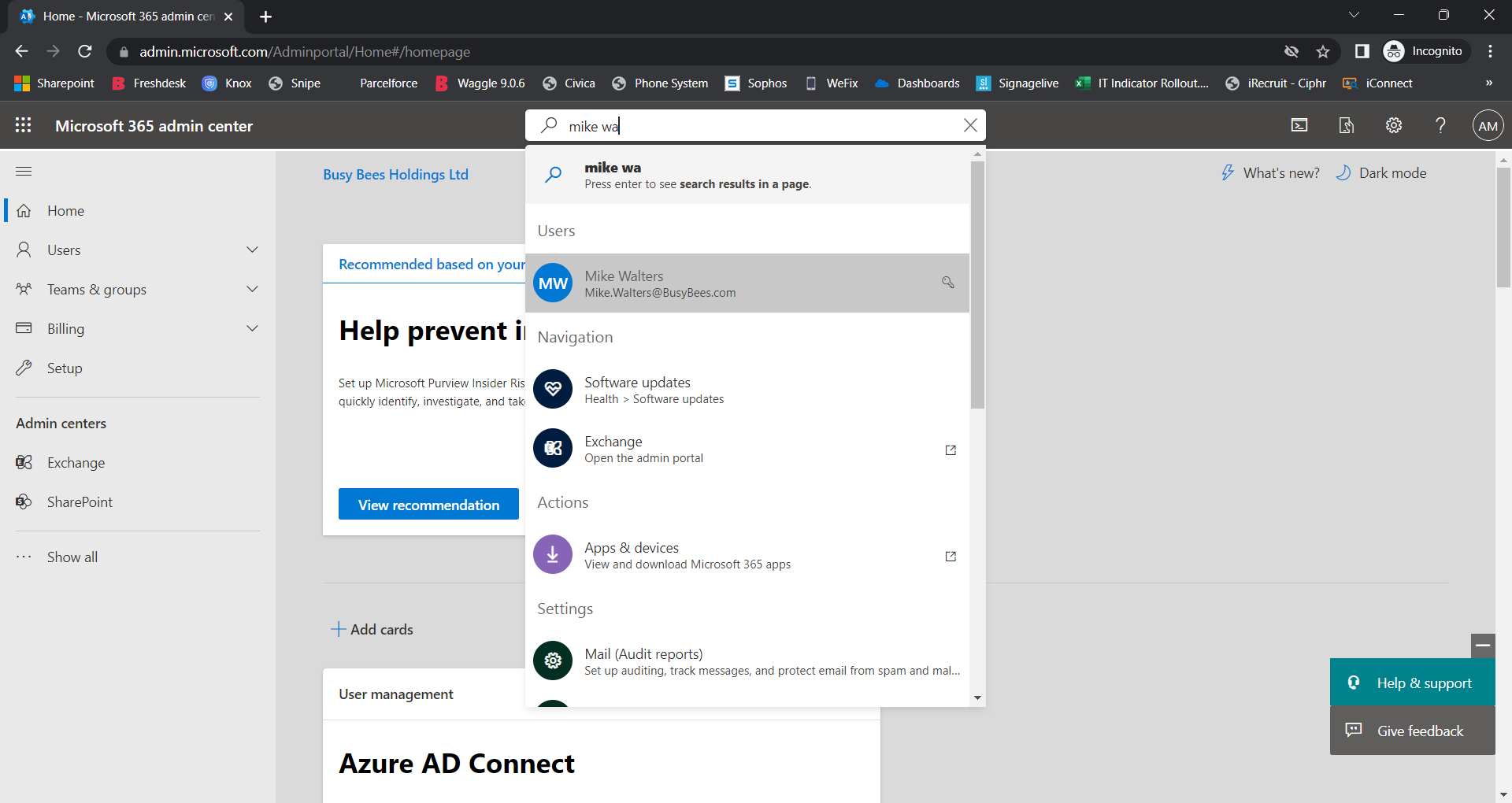
Click the search bar at the top, and search for the user you want to reset the password for.
Click on the users name.
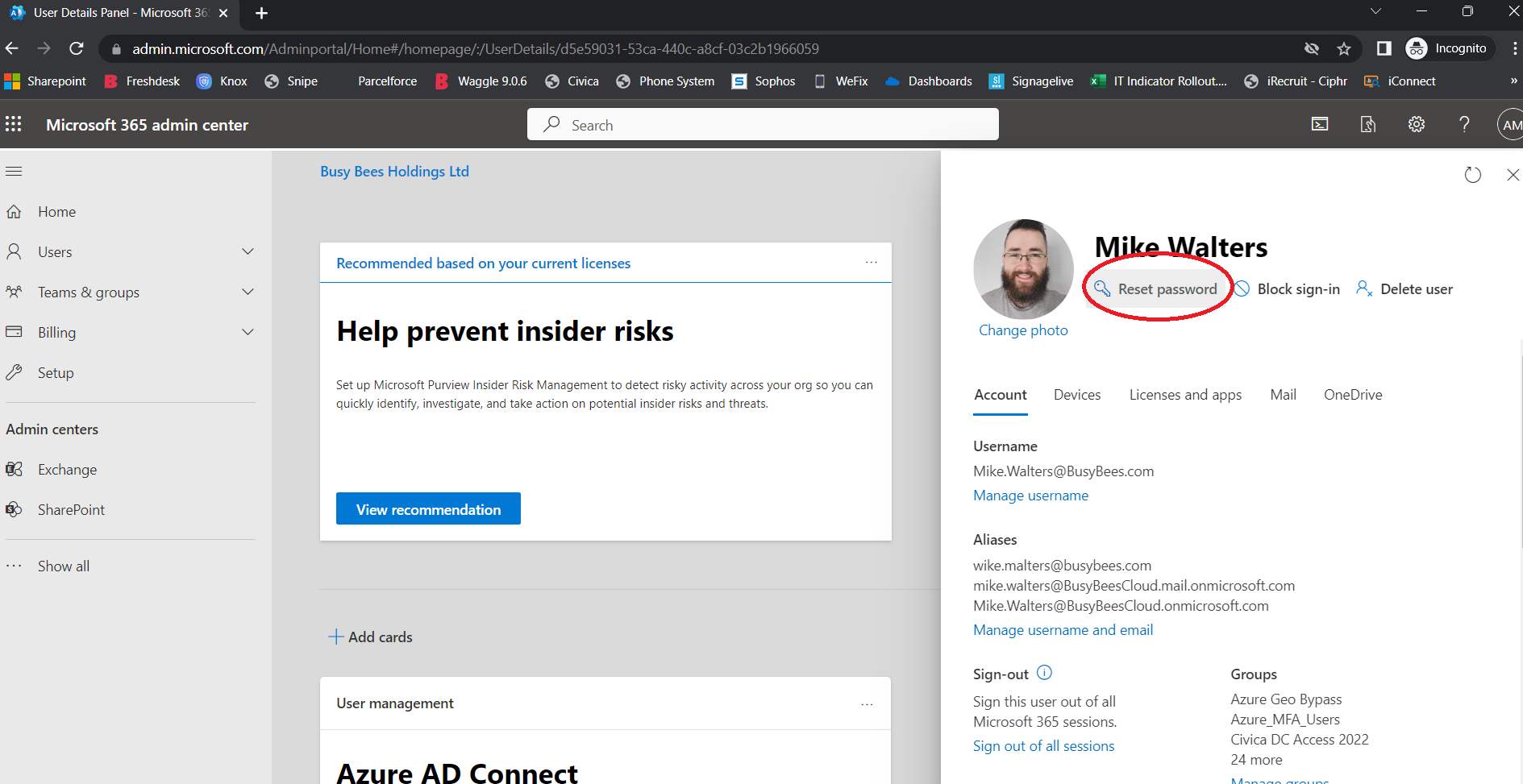
Click on Reset password
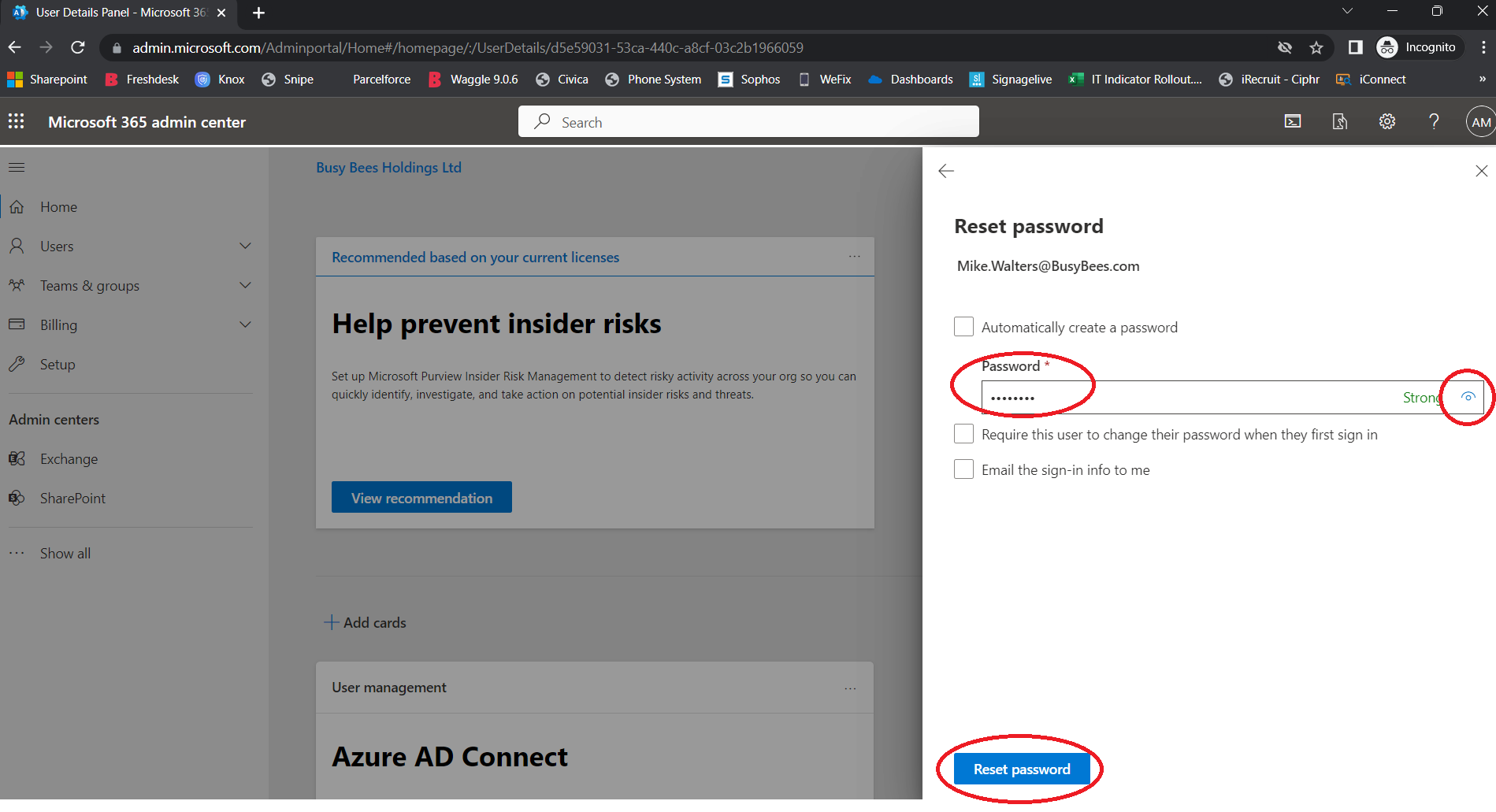
Create a password and click Reset password at the bottom. You can also click the eye icon at the end to ensure you have entered this correctly.
It is also worth noting that the AD/Domain password syncs through to the 365 account every 30 minutes or so, so whatever you have set for the AD password will need to match the 365 password. Otherwise the AD password will just overwrite whatever password you have set in 365.
iRecruit
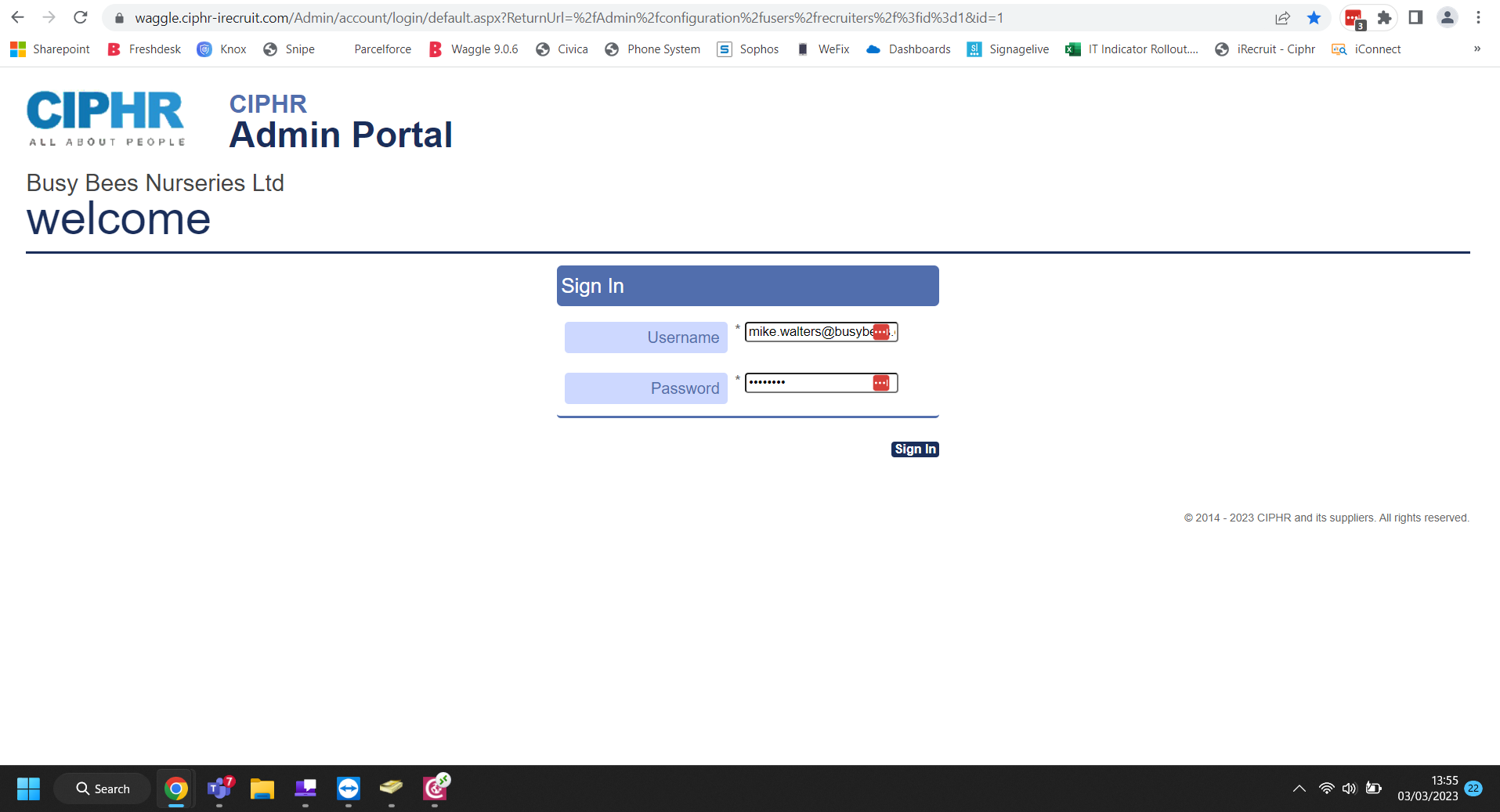
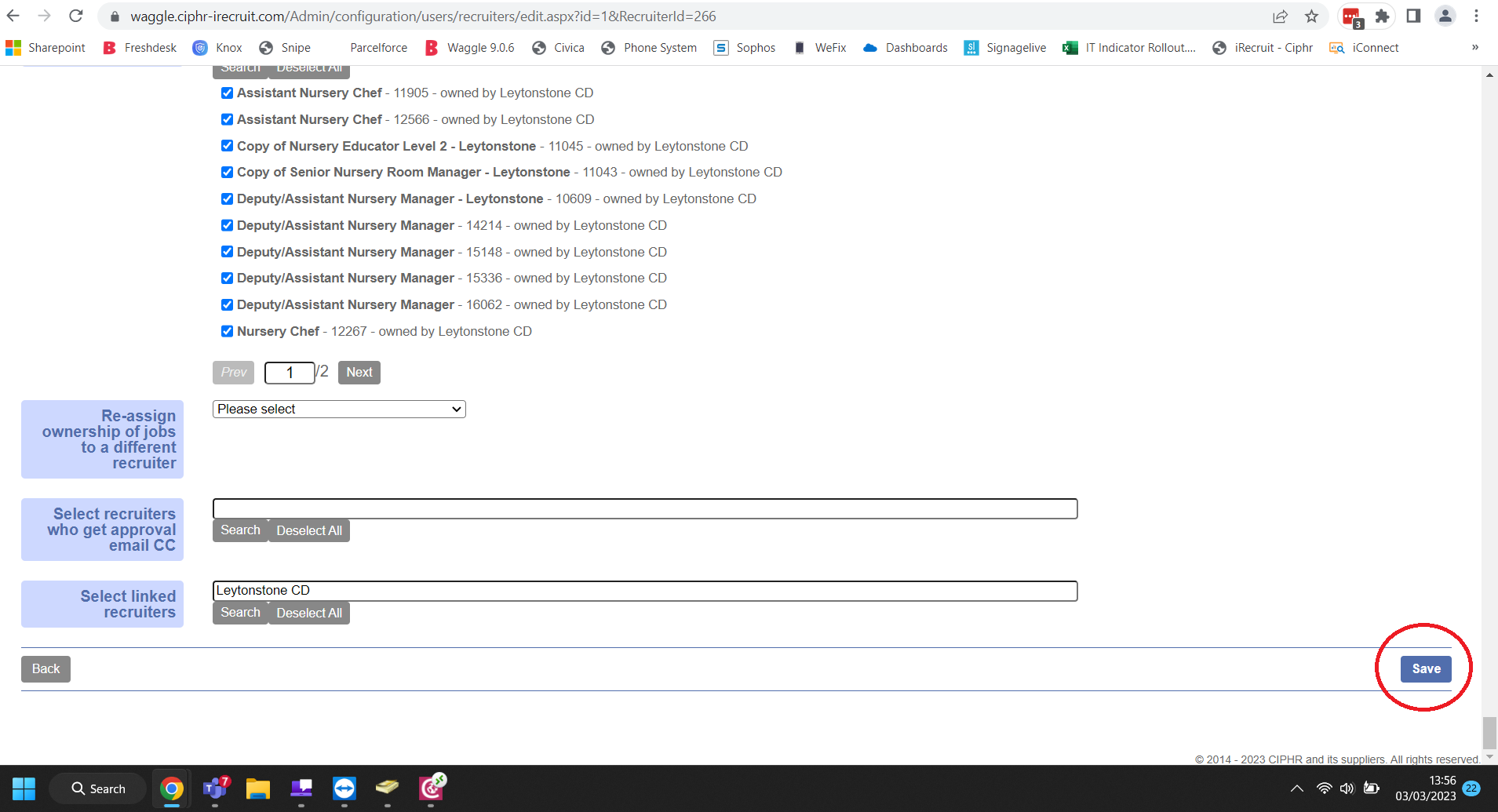
Search for the user that is currently locked out or needs their password resetting.
You can see the small padlock next to the username to show that the account is locked.
Click the username to access the account settings.
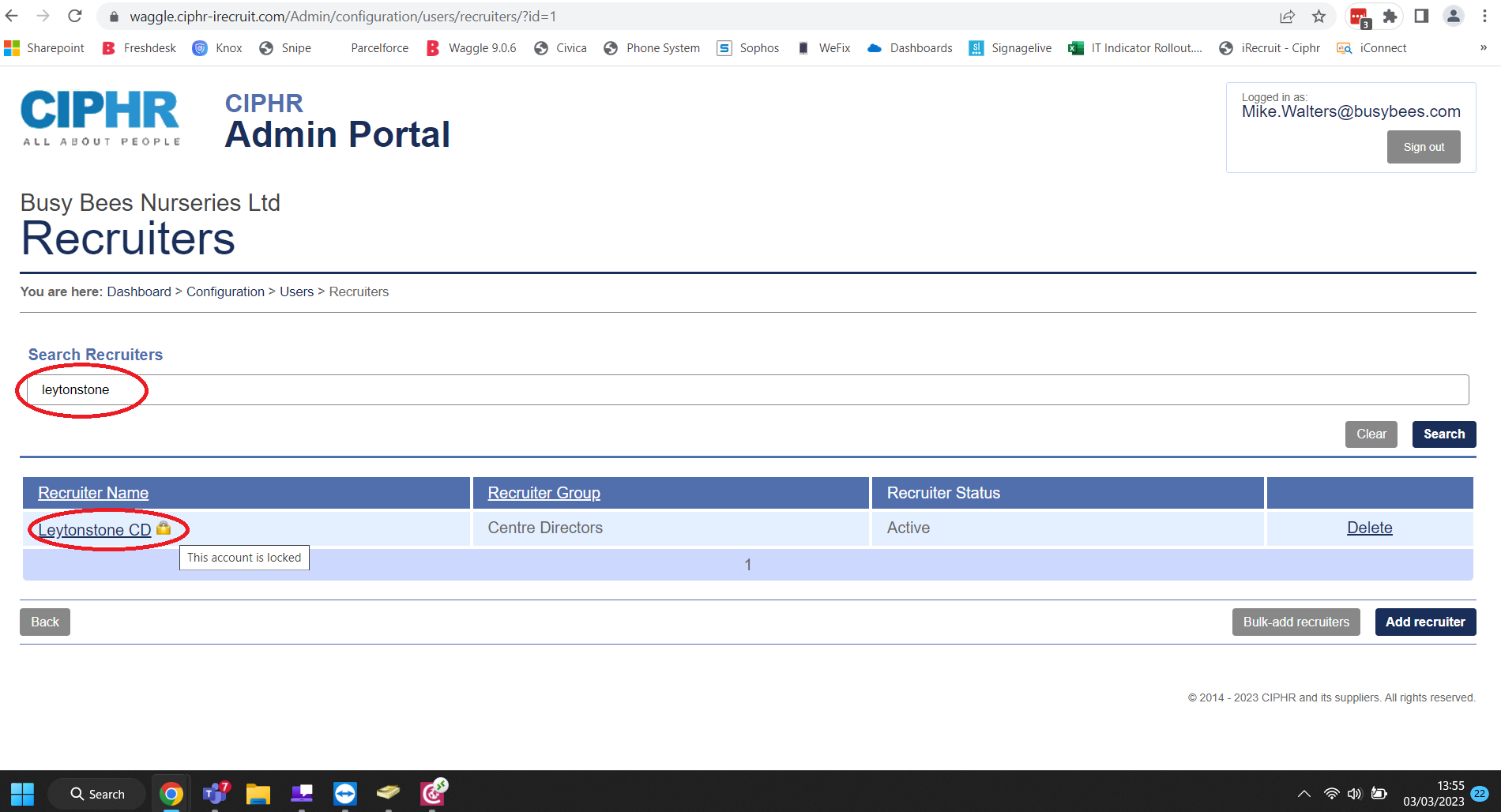
Enter the new password in the two boxes.
We have a set password that we use for iRecruit which is a part of a "Scenario" on Freshdesk.
If this is for a ticket, find the scenario on Freshdesk, use the password from the scenario and set it on iRecruit.
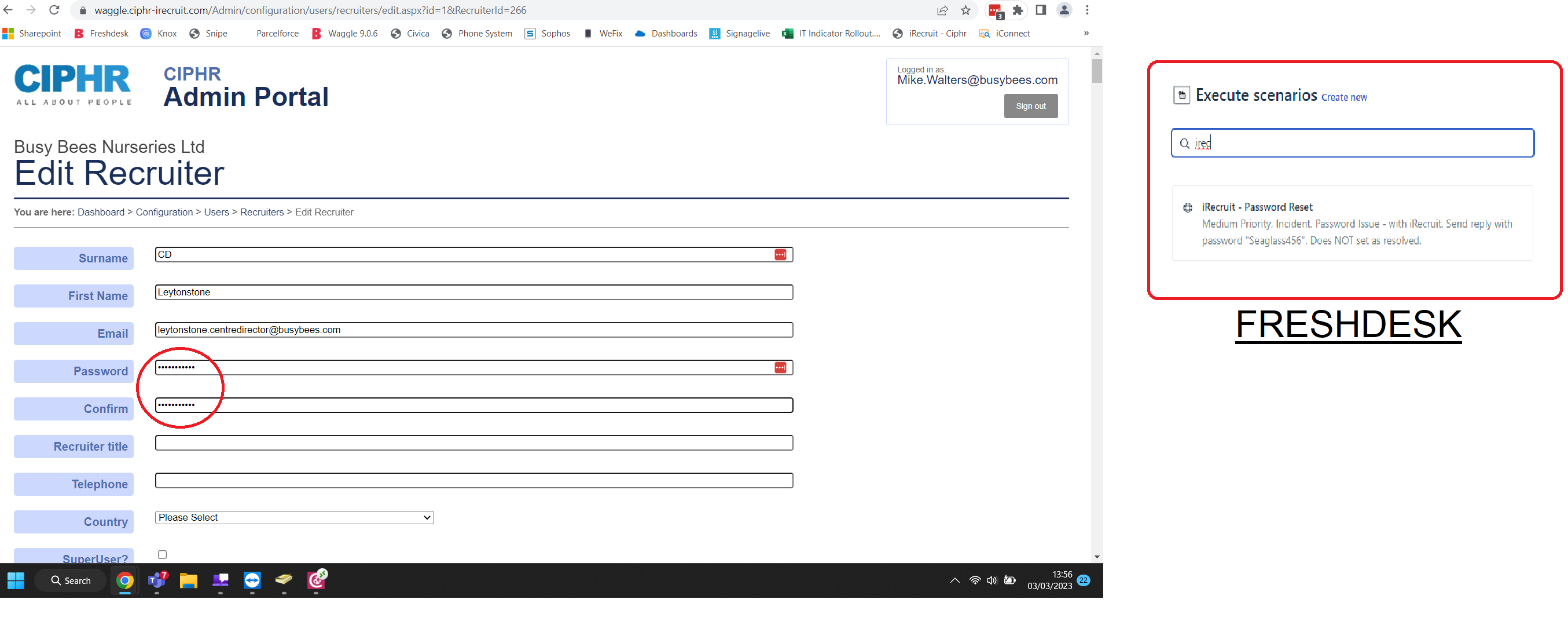
Scroll down a little and ensure the account is set to "Unlocked"
Scroll down to the bottom and click "Save"
Then execute the scenario on Freshdesk to send the response.
Dashboards
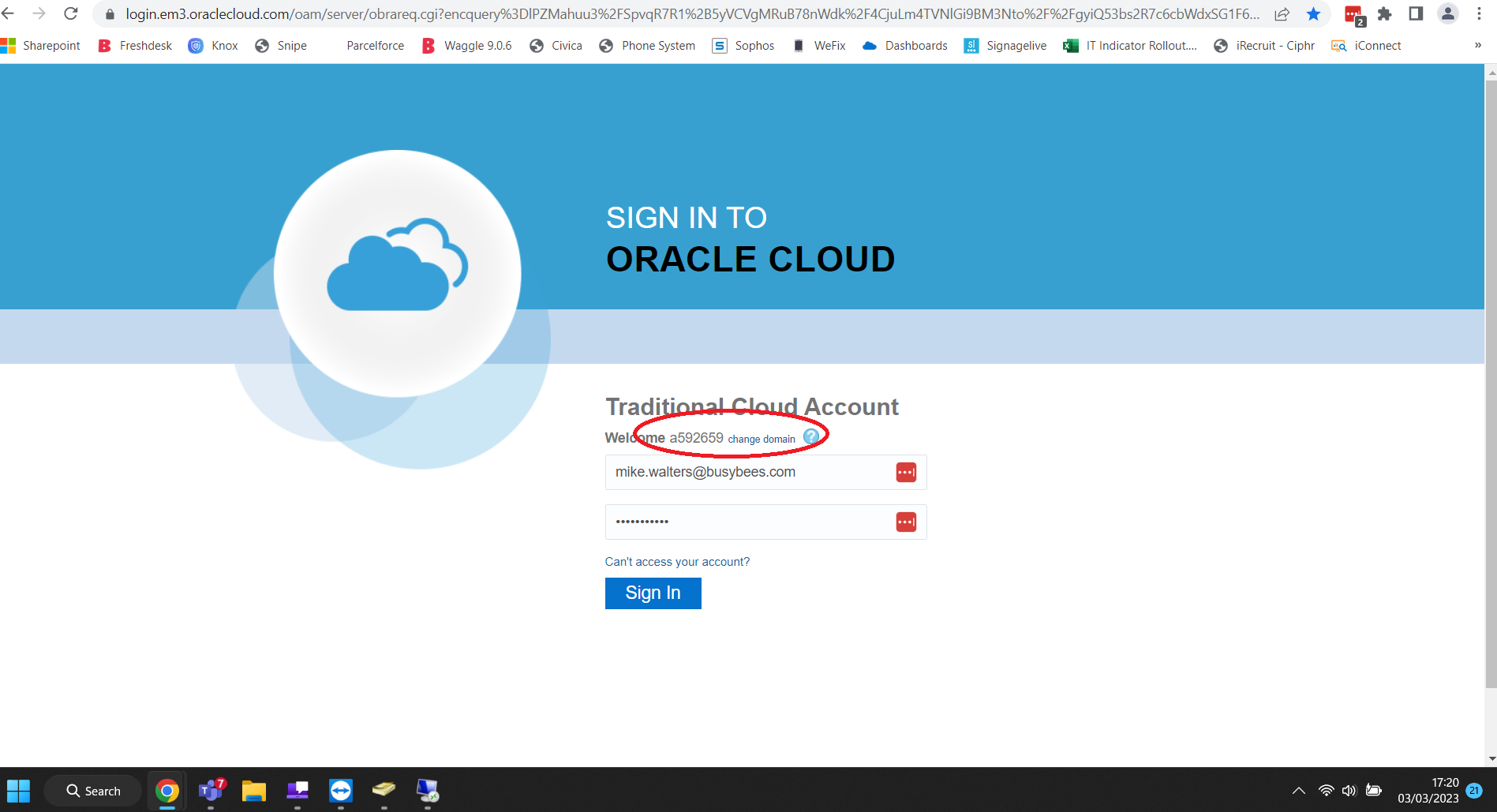
The domain is: a592659
Enter your login details to sign in.
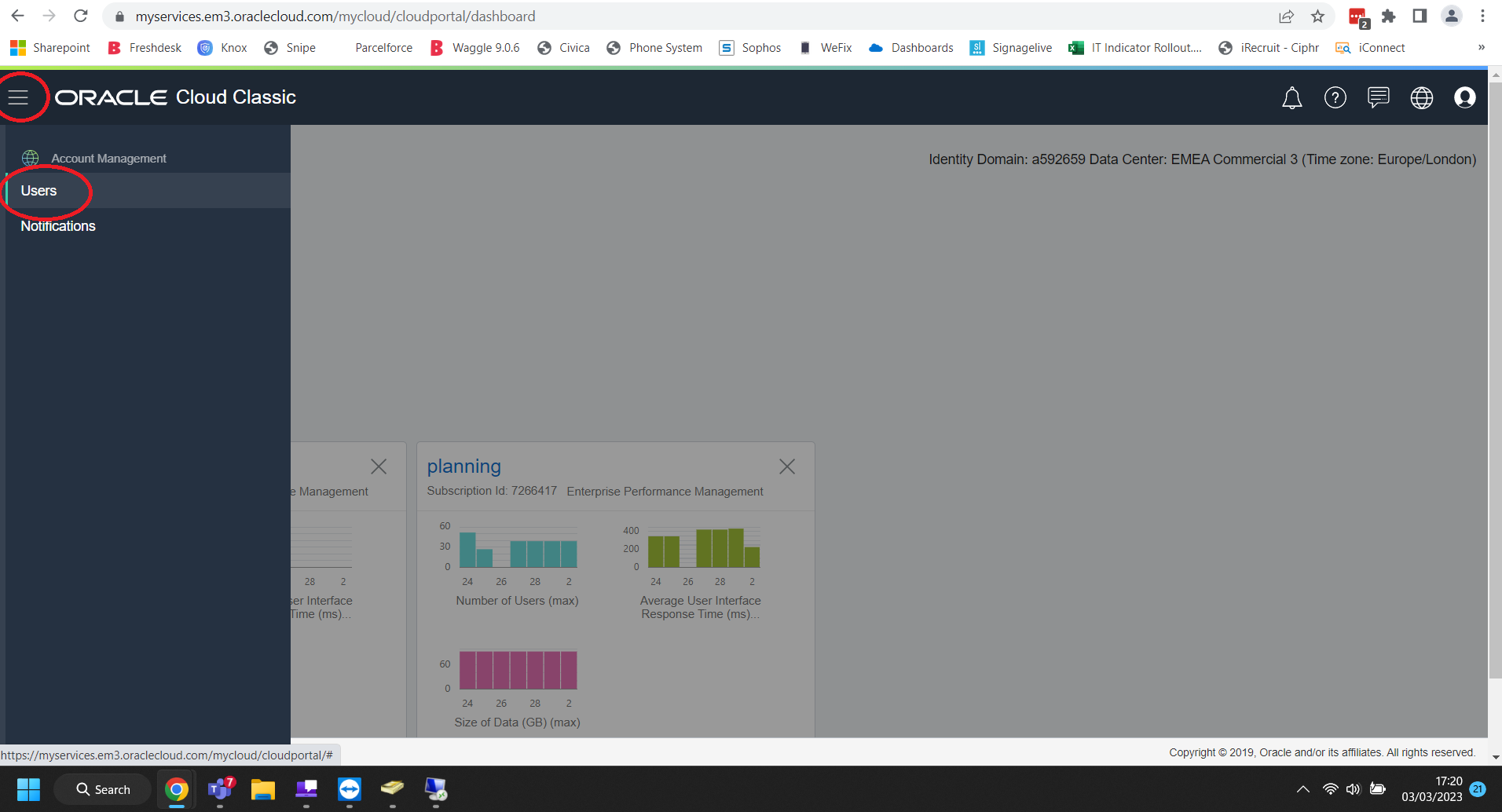
Click on the three lines in the top left corner.
Click on Users.
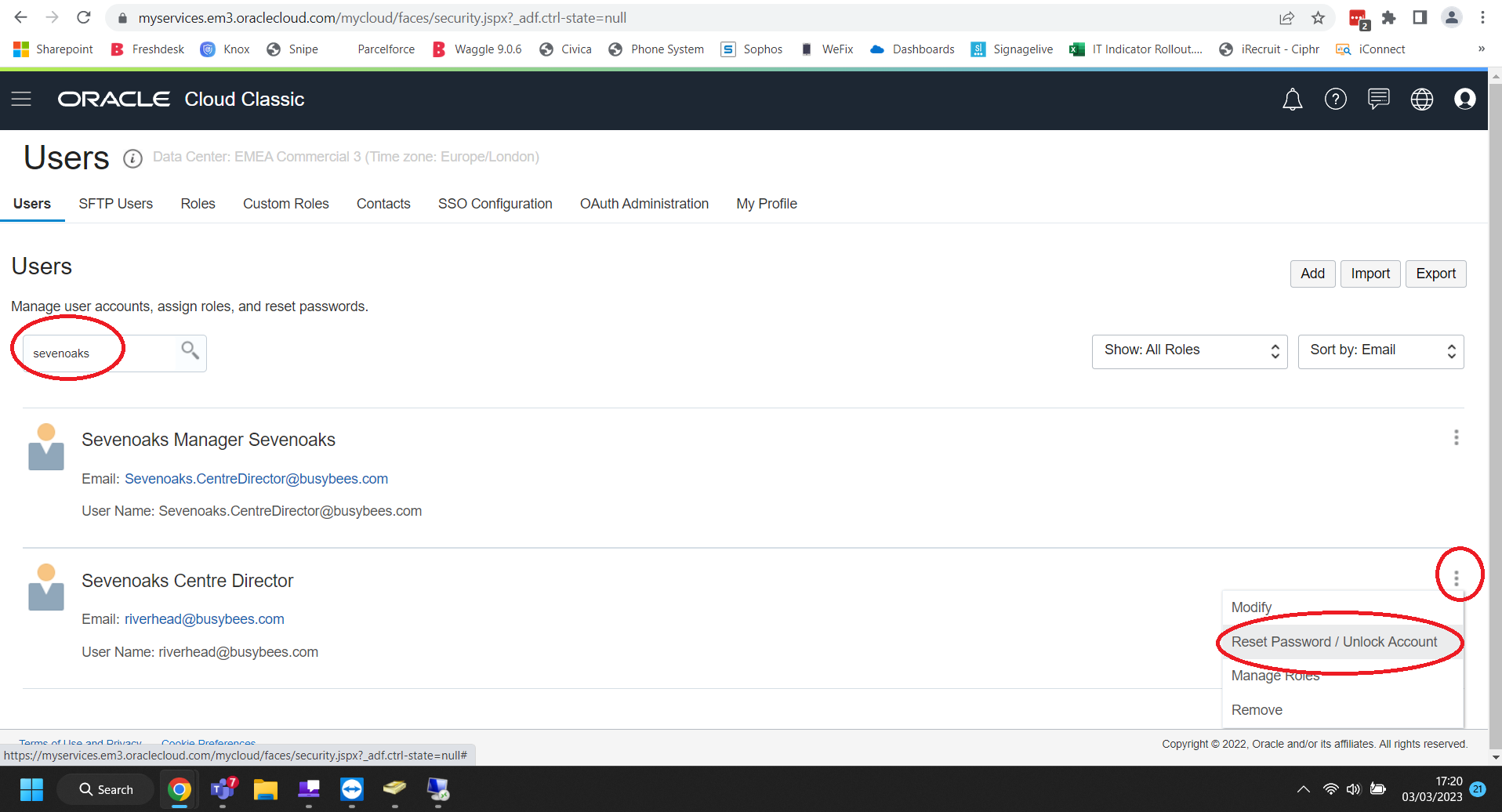
Enter the Centre's name or the username.
Click on the three dots to the right of their account.
Click "Reset Password/Unlock Account"
The user will then receive an email with a password reset link and a temporary password.
Netsuite
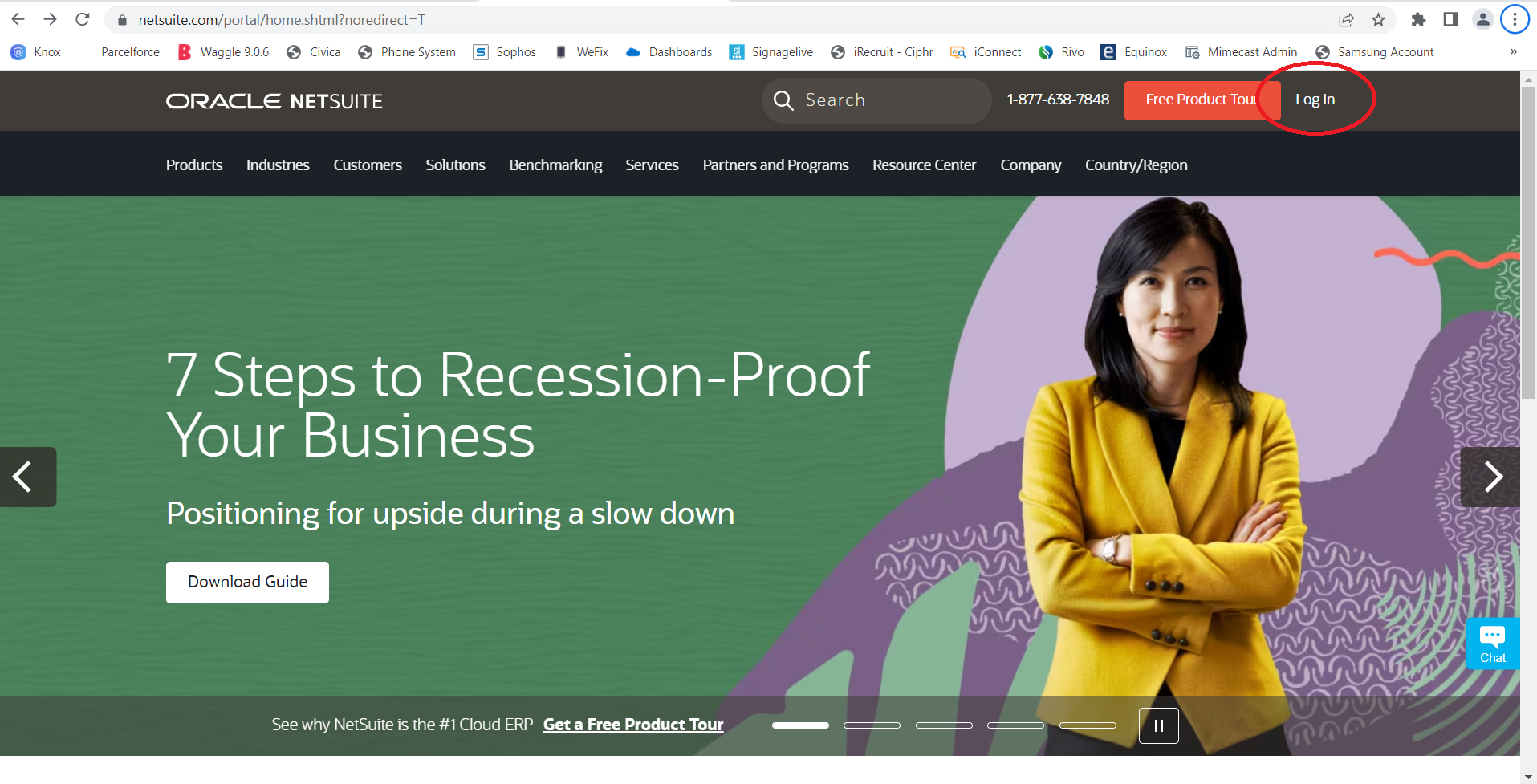
Go to netsuite.com and click "Log in" in the top right corner.
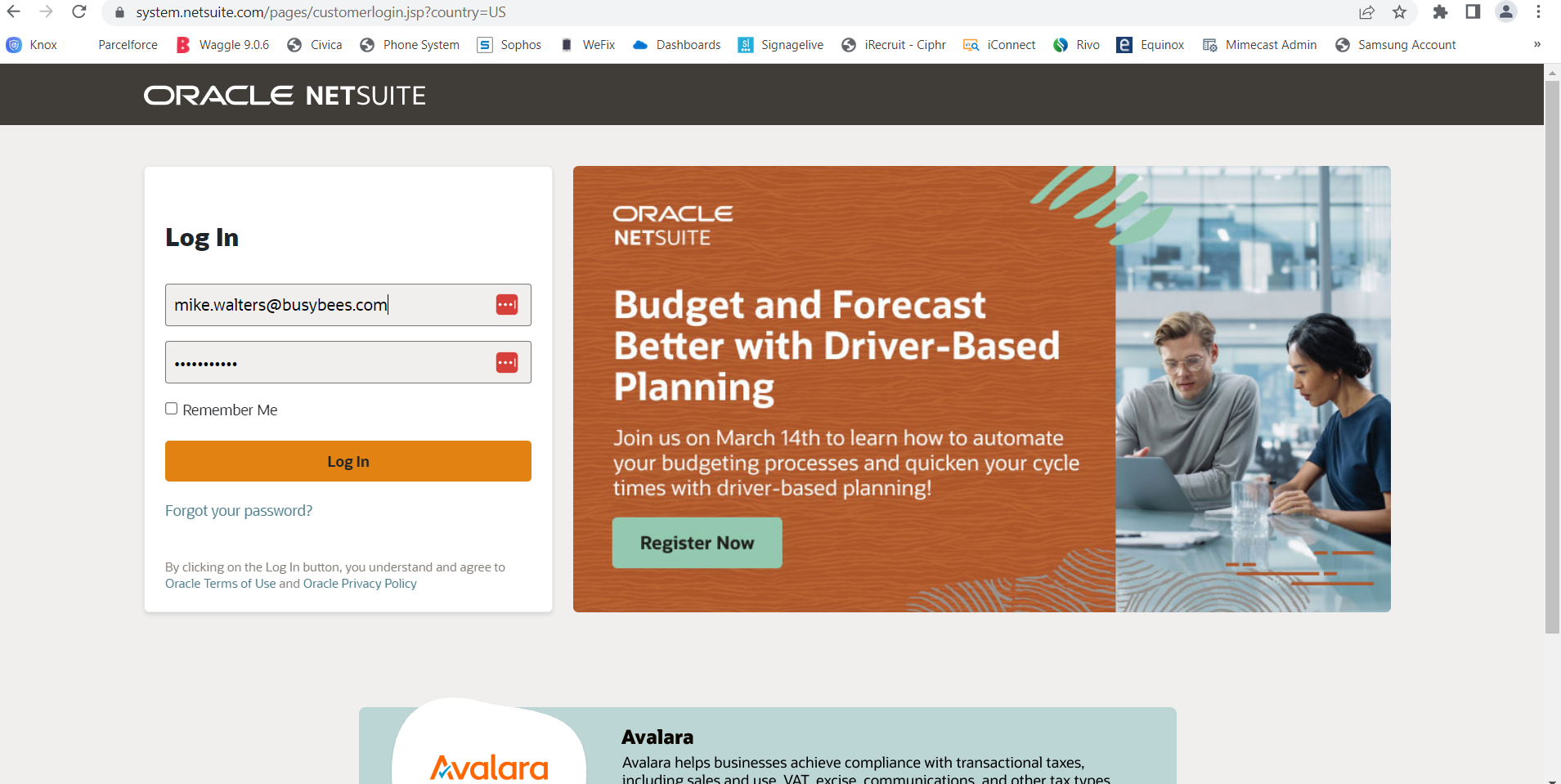
Enter your login details and click "Log in"
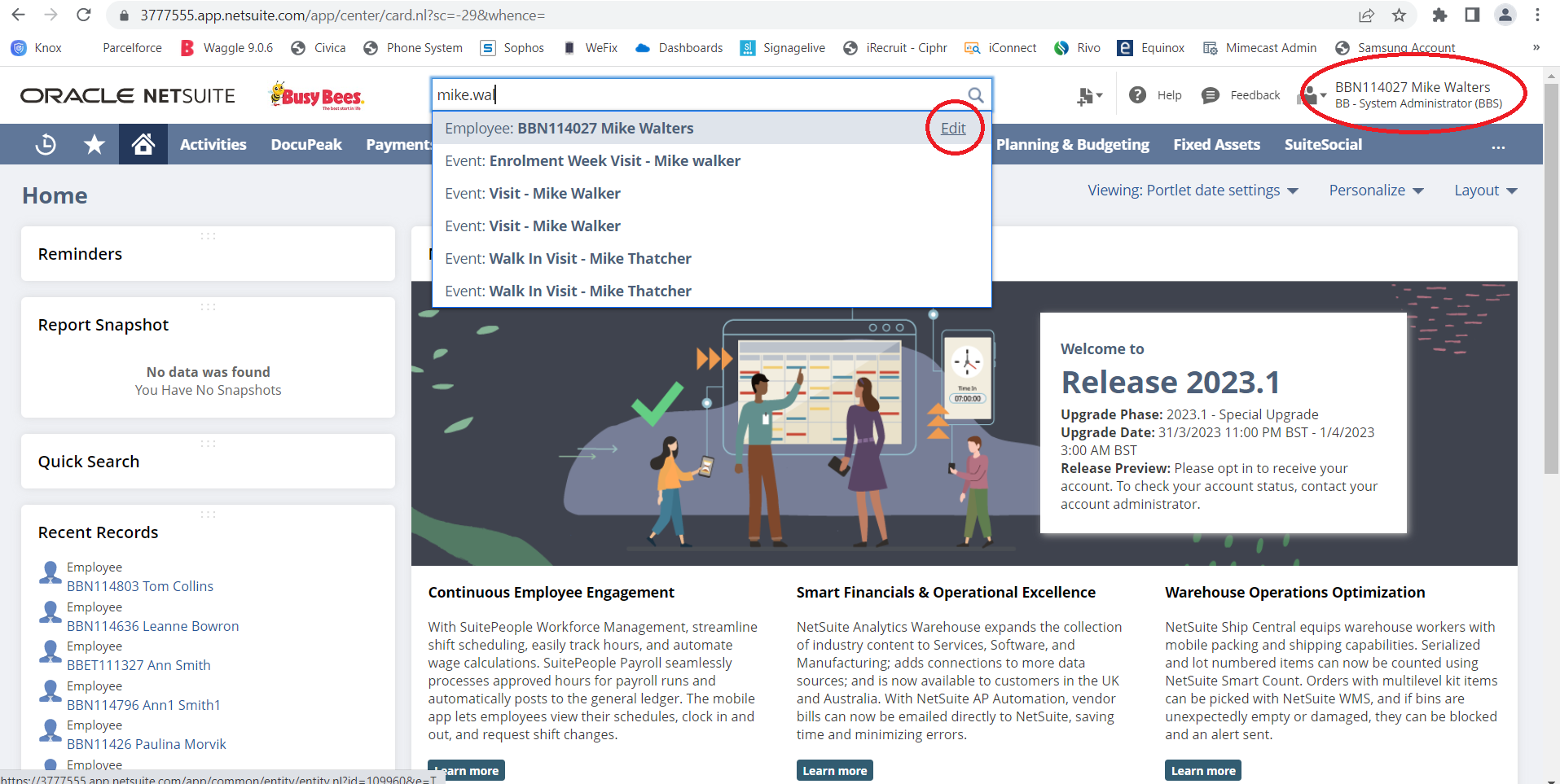
Ensure you have the correct role selected in the top right corner - System Administrator (BBS)
Search for the user via their name or email address and click "Edit" on the right.
If you are unable to find the user, try adding a plus sign (+) to the end of the search (this shows users that are disabled on Netsuite)
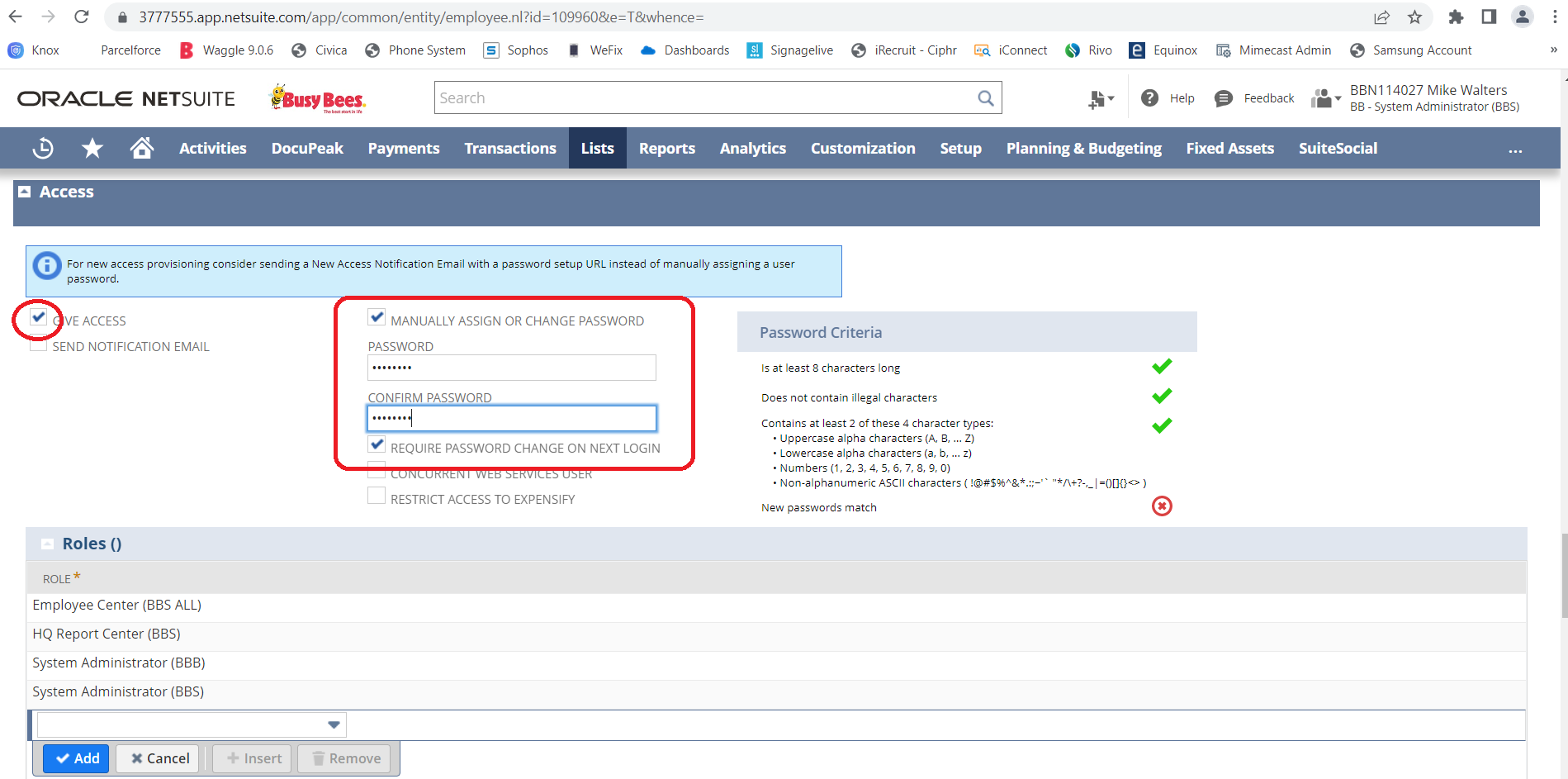
Once the users account has loaded, scroll down to "Access"
Ensure "Give Access" is ticked on the left
Tick "Manually assign or change password"
Enter a temporary secure password in both boxes and ensure all requirements are met for the Password Criteria on the right
Tick the box underneath that says "Require password change on next login"
Scroll down to the bottom and click "Save"
You may receive an error message when the page reloads, this is common but the password has changed.
Send the user their temporary password and advise them they will need to change it when logging in.
When the user changes their password, they will be asked for the "Old password" - this is whatever you set for them when changing their password.
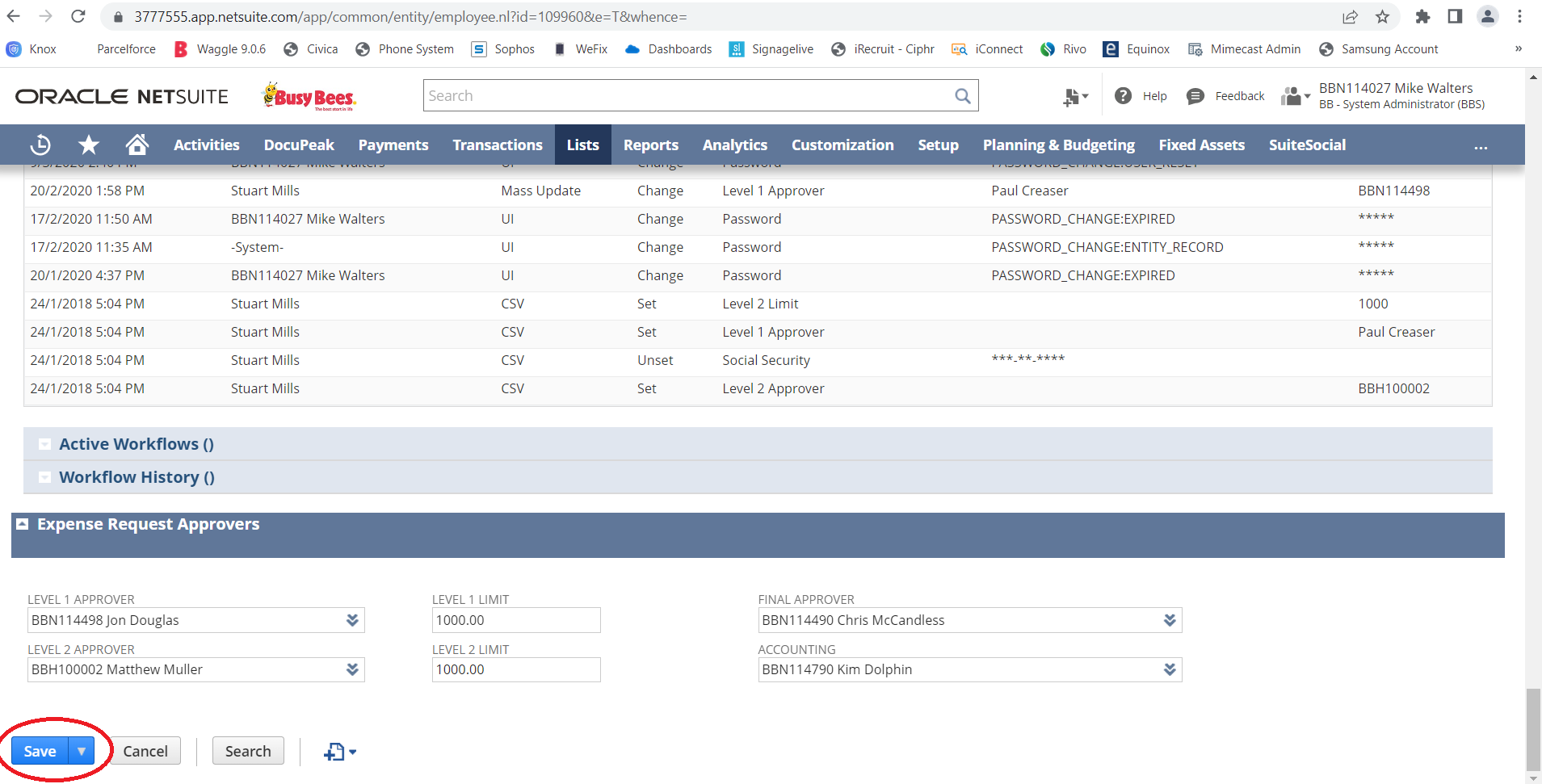
Side note:
Below the password section you will see "Roles" - a role is needed for every account and is also needed for you to be able to reset the password. Typically these will already be set, but for new user accounts or re-enabling disabled accounts, these will need to be added.
Nurserycare / Coldharbour / Civica
All Nurserycare password change requests or new account requests must be sent to the IT Service Desk as a ticket from the Centre Director's email address.
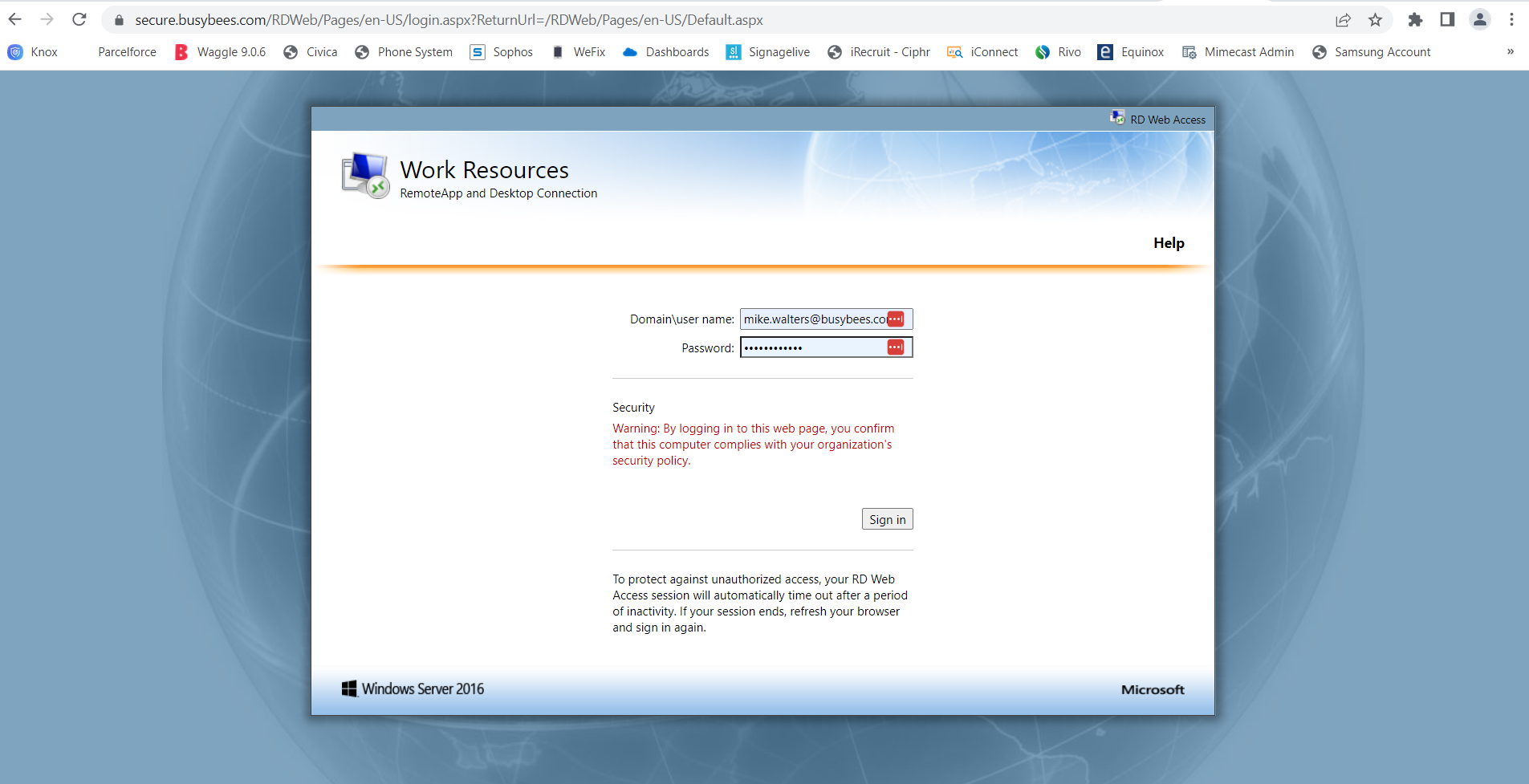
Login at: secure.busybees.com using your domain login details.
- Click on "Global NurseryCare Live"
- Click on the Remote Desktop download in the bottom left corner of Google Chrome, or top right corner of Microsoft Edge.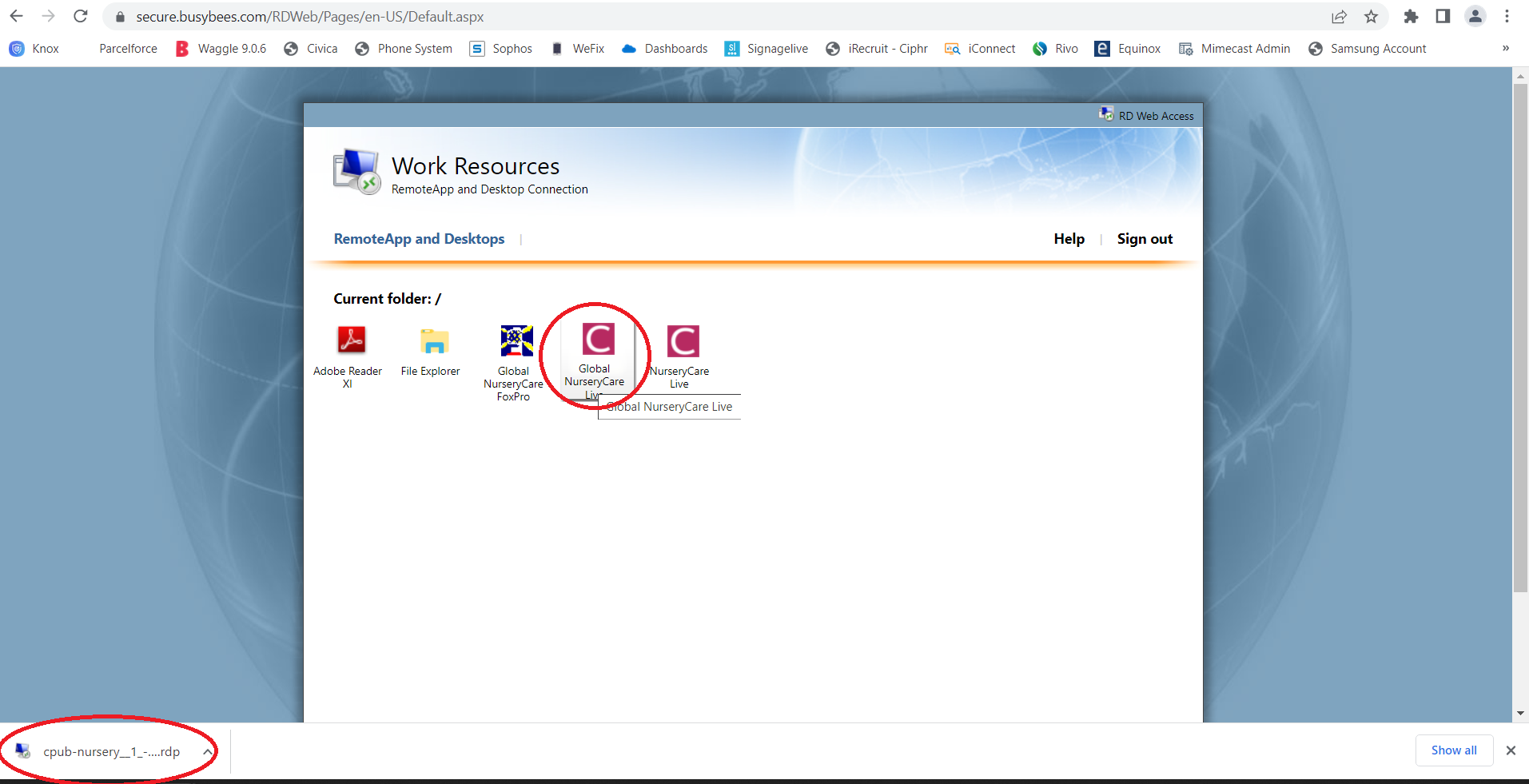
Click on "Connect" when the Remote Desktop pops up.
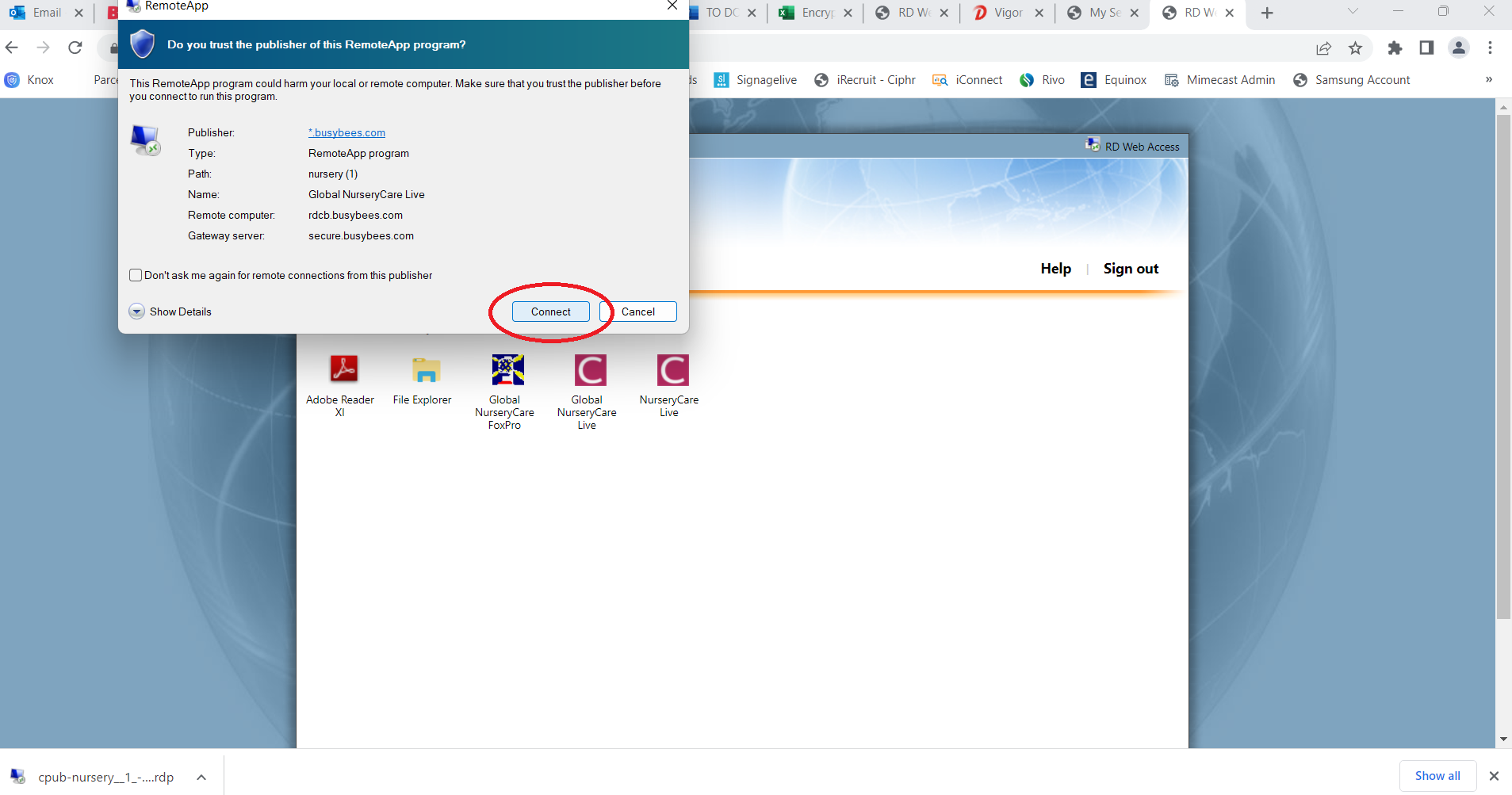
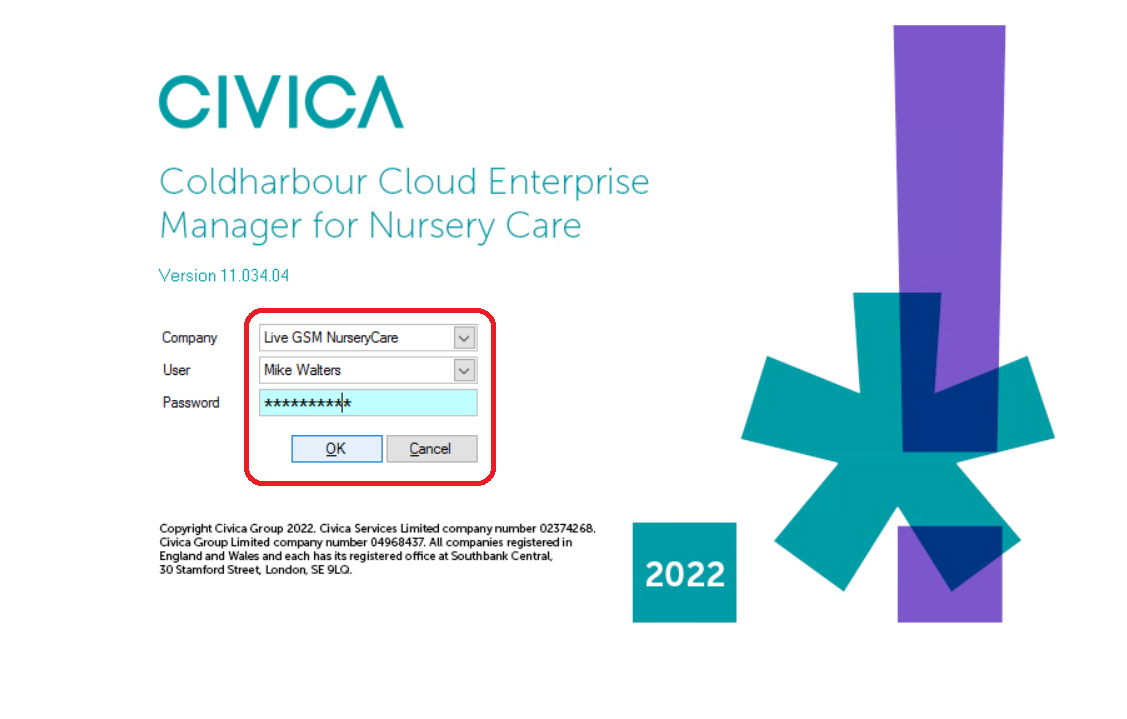
When it pops up, login to Nurserycare.
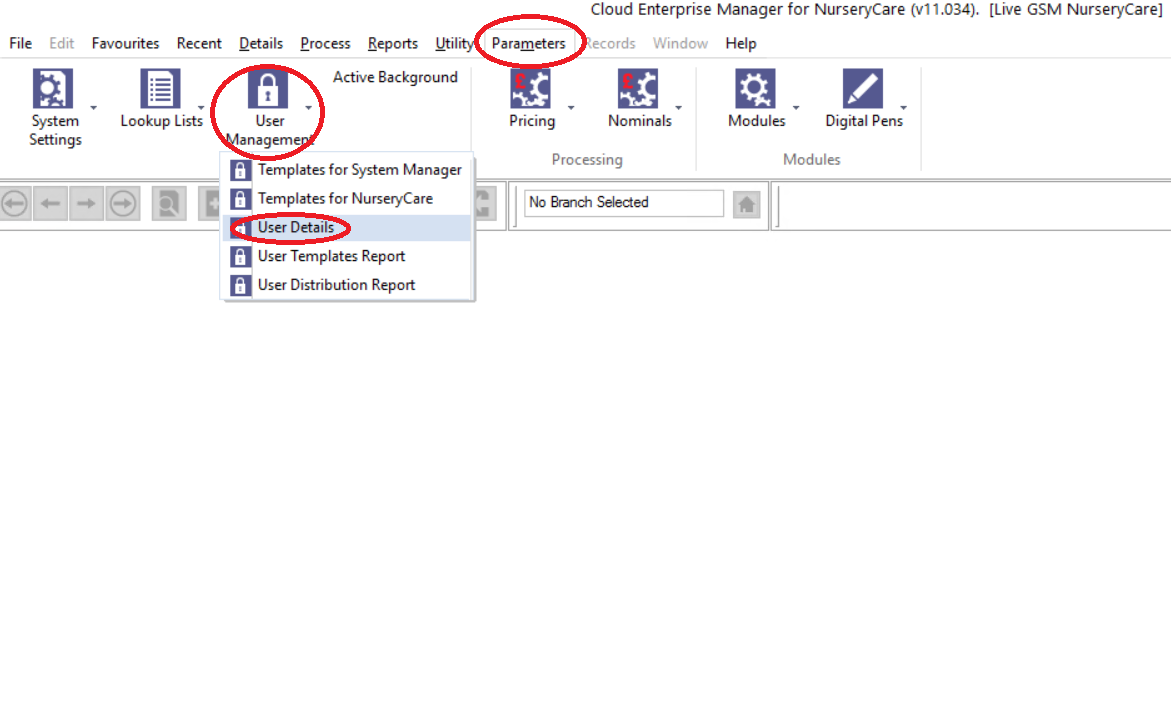
- Once logged in, click on "Parameters" at the top.
- Click on "User Management"
- Click on "User Details"
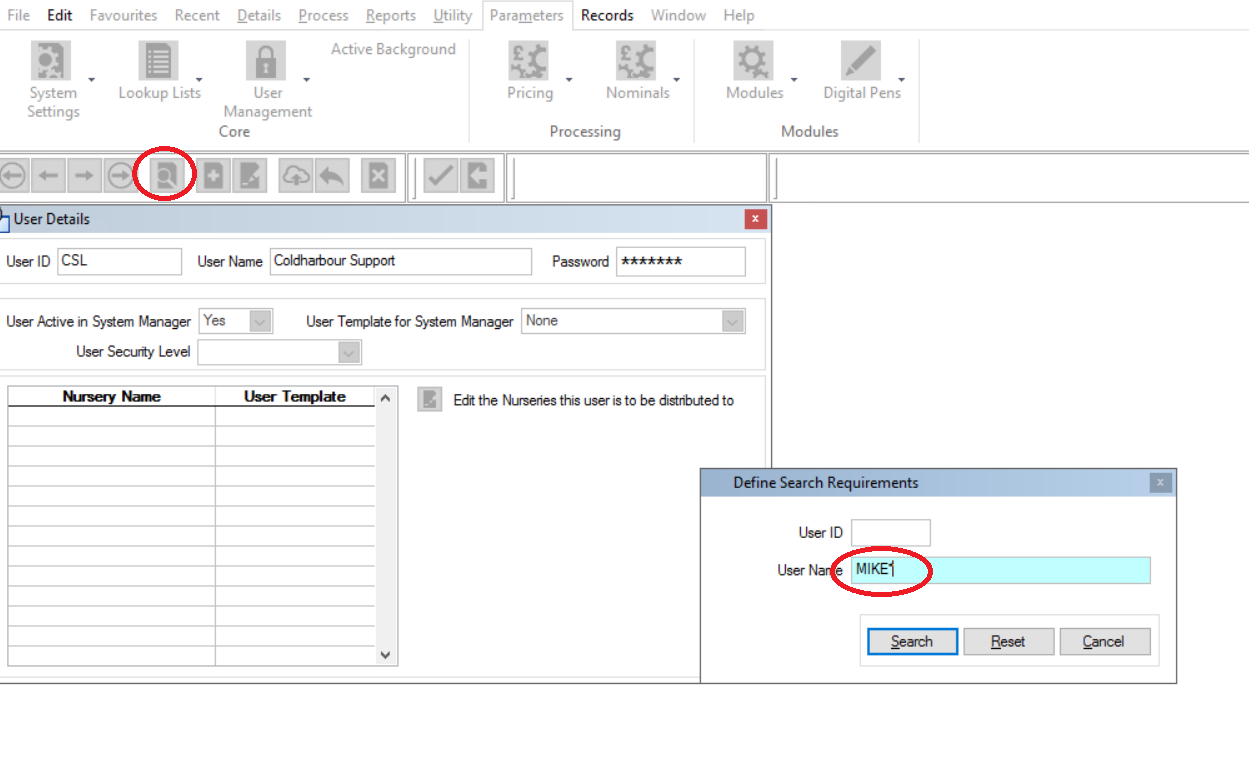
- Click on the Search icon (Magnifying glass)
- Search for the user whose password needs resetting - you need to add an asterisk (*) to the end of the search to bring up all the results.
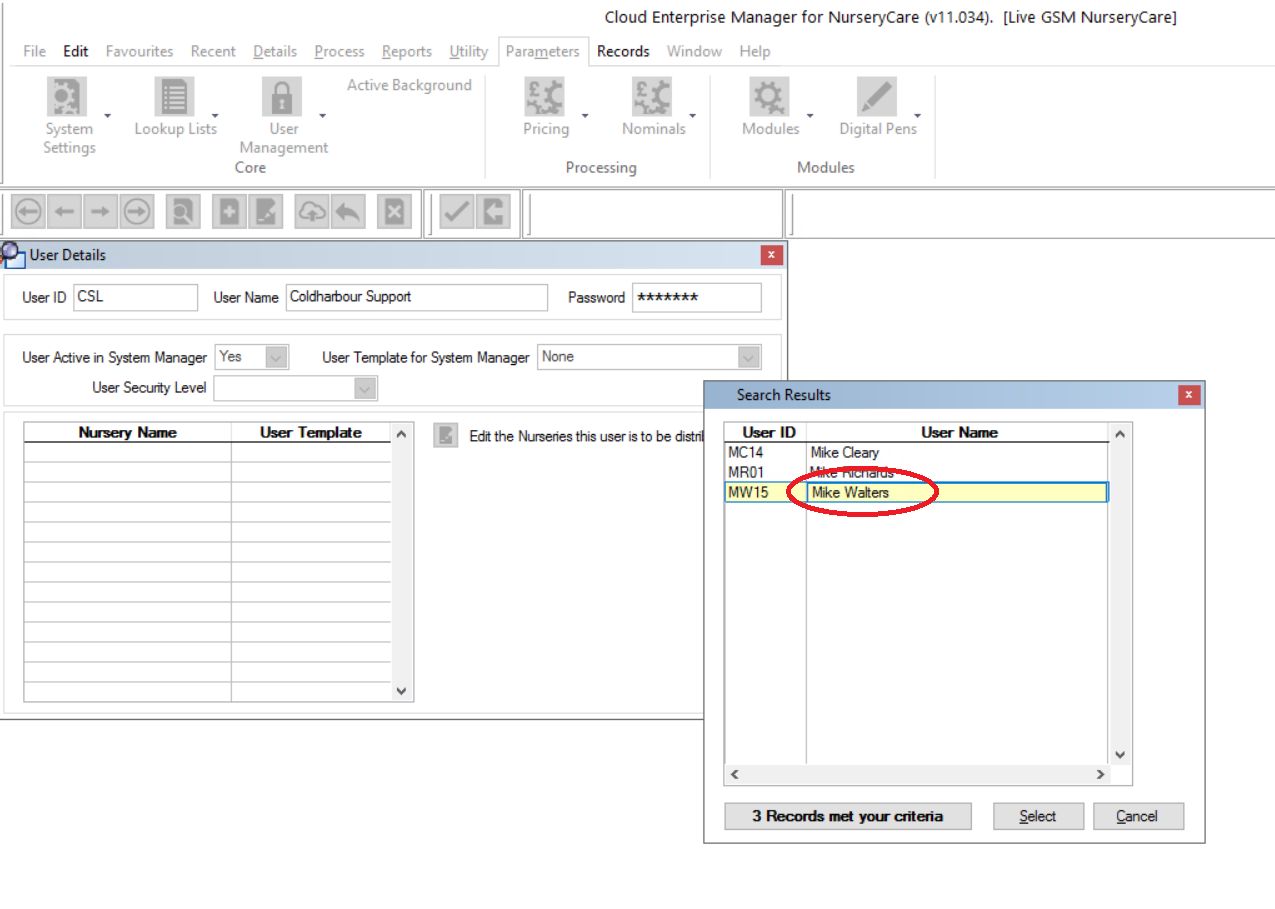
Double click the username to open their account settings.
- Click on the "Edit Record" icon at the top.
- Enter the temporary password. This is typically Reset123
- Hit the tab key on your keyboard and the Password Confirmation box will pop up, enter the same password and tick the box underneath that says "Force Update on Login"
- Click "OK"
We have a scenario on Freshdesk that sends the password info to the end user, and the password in the scenario is Reset123
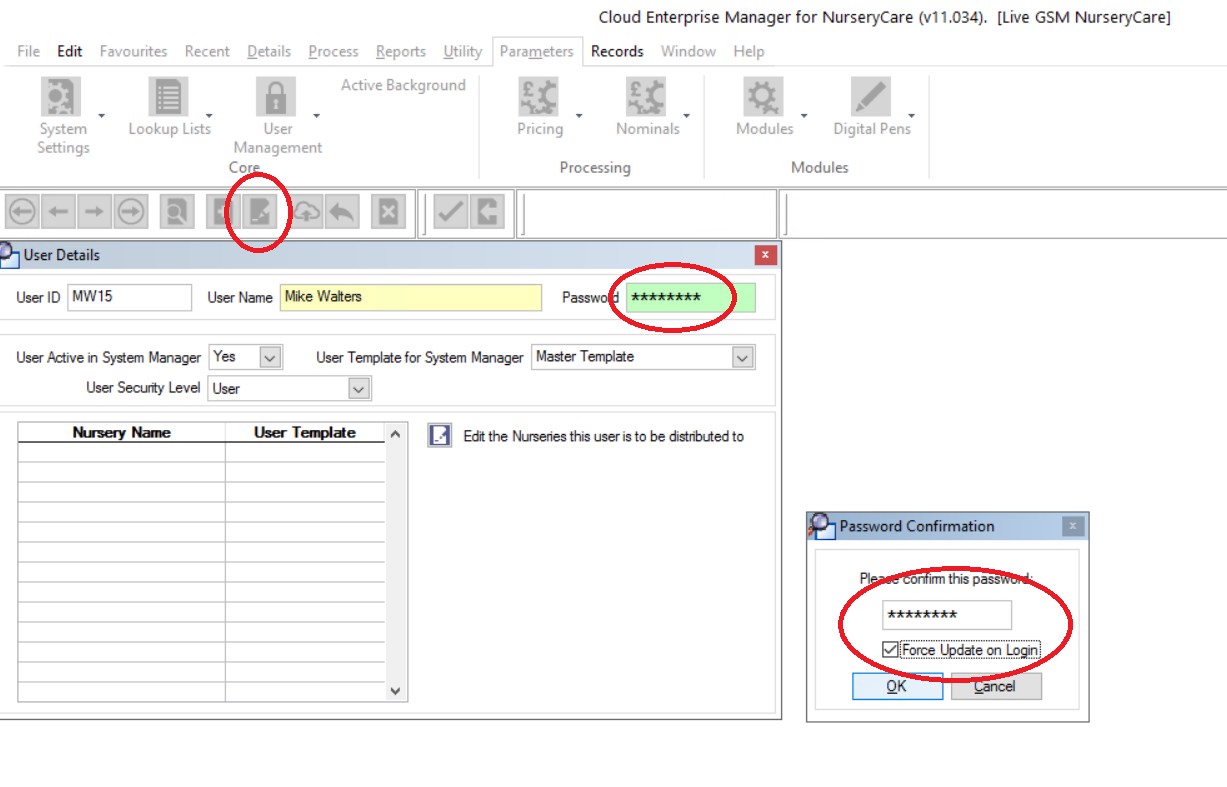
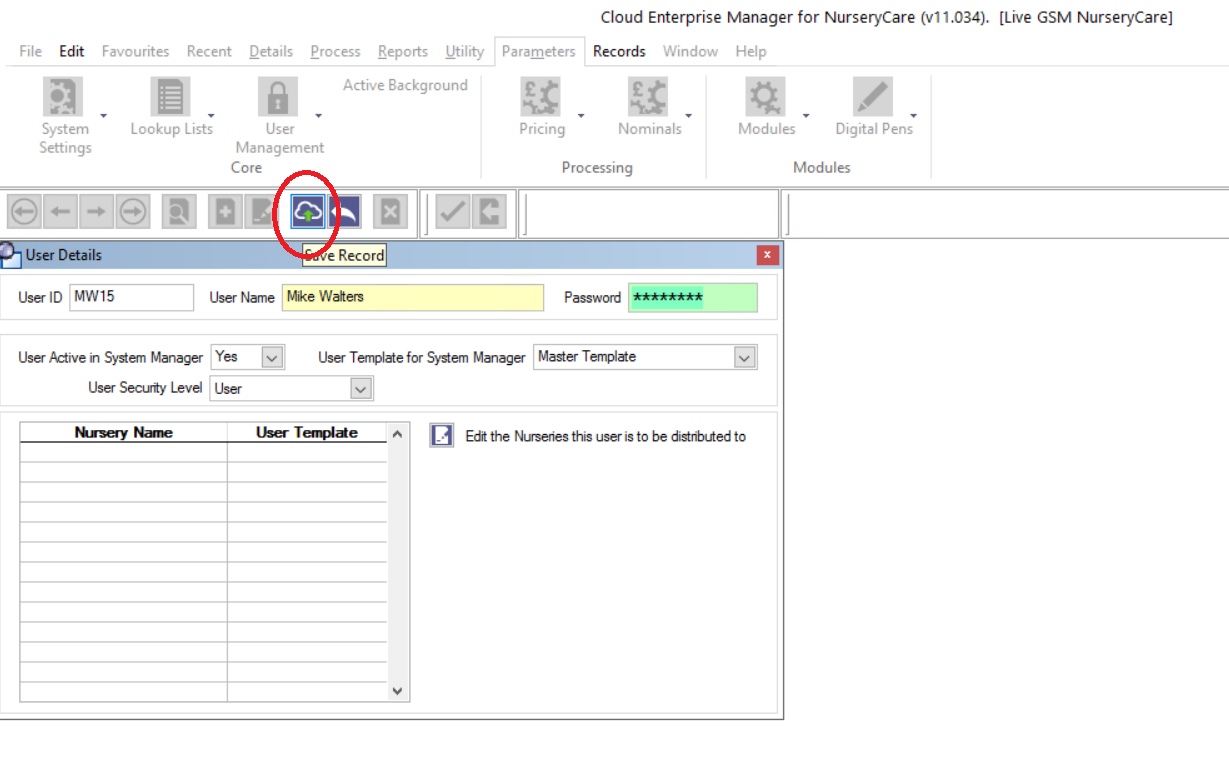
Click the "Save Record" icon at the top.
Then execute the scenario on the ticket on Freshdesk, and set the ticket as Resolved.